Transactions

Exiting Transactions
While entering batches of transactions, closing the window before saving will prompt the following window:

You can "Post and Exit", "Save" to keep your progress to finish later, "Delete" to discard the entries, or "Cancel" to continue working.
Use the Browse button to lookup posted transactions on the Browse Transactions screen and make any necessary reversals or corrections.
Additional features include the application of Recurring Transactions and the display of a Running Balances window to guide you while posting transactions:
Recurring Transactions
Recurring transactions are those that repeat throughout the year. This window allows you to save information about those transactions so you can quickly duplicate them. You can access the Recurring Transactions window from the following screens with the  button;
-
Enter Income
-
Enter Bills
-
Transfer
-
Journal Entry Transactions
-
Invoice Accounts Receivable
Organize your recurring transactions into categories, by clicking  . In the Category column, group recurring transactions and display a particular category by selecting from the drop down at the bottom of the screen.
Running Balances
Click  to show the current balance of an account, how the current transactions affect it, and the balance of the account with that transactions.
Use a Recurring Transaction
-
Click
. -
Highlight the needed transaction(s).
-
Click
 .
.
Add a New Recurring Transaction
-
Click
. -
Click
 .
. -
Enter a description and frequency along with the information specific to the transaction type you're creating.
Income
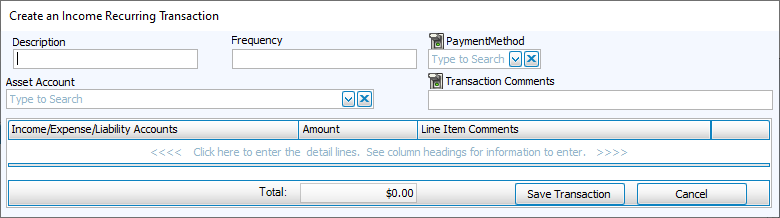
Bills

Transfer
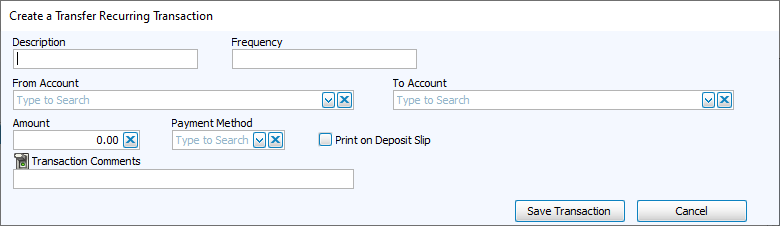
Journal Entry
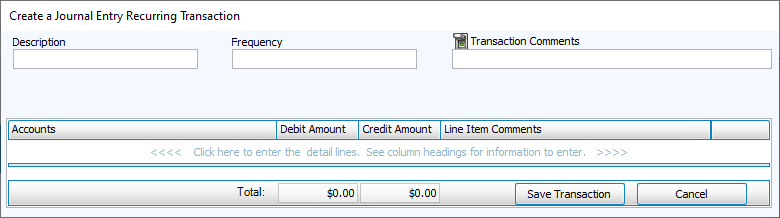
Accounts Receivable
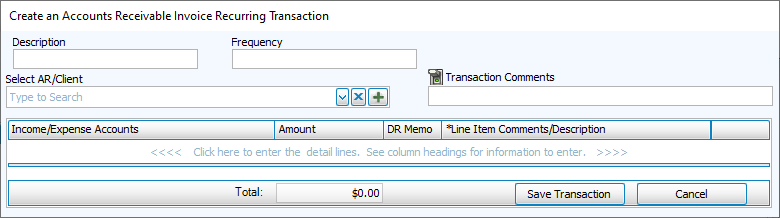
-
Click
 .
.
Edit a Recurring Transaction
-
Click
. -
Highlight transactions you want to edit.
-
Make adjustments.
-
Click
.
Delete a Recurring Transaction
-
Click
. -
Highlight transactions you want to delete.
-
Confirm the deletion.
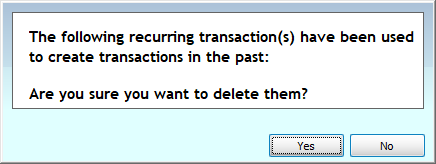
This will not delete any previous transactions.